How to Create a Facebook Profile A Comprehensive Step-by-Step Guide
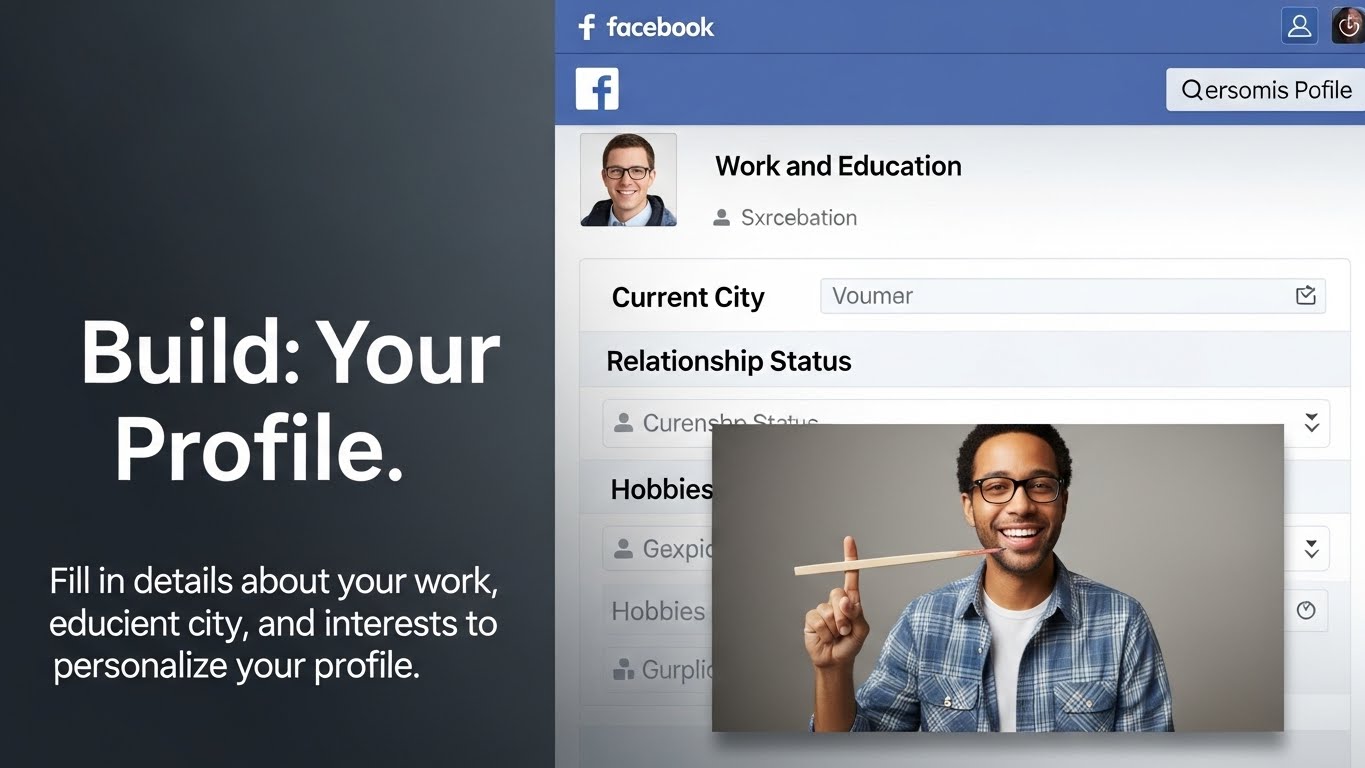
Facebook, the social media behemoth, connects billions of people worldwide. Whether you’re looking to reconnect with old friends, network professionally, or simply stay up-to-date with the latest news and trends, having a Facebook profile is almost essential in today’s digital age. This comprehensive guide will walk you through the process of how to create facebook profile and get started on this vibrant platform. Let’s dive in!
Understanding the Basics Before You Begin
Before you jump into the technical aspects of creating an account, it’s helpful to understand what you’re getting into. Facebook is a social networking service that allows you to share updates, photos, videos, and links with your “friends” (connections) and followers. You can also join groups based on your interests, follow pages of businesses and organizations, and engage in conversations with other users.
What You’ll Need
To create facebook, you’ll need a few things readily available:
- An Email Address or Mobile Phone Number: Facebook requires a valid email address or mobile phone number for registration and verification.
- A Strong Password: Choose a strong, unique password that’s difficult to guess.
- Your Full Name: You’ll need to provide your legal name for your profile.
- Your Date of Birth: Facebook requires you to provide your date of birth.
Step 1: Navigating to the Facebook Sign-Up Page
The first step in your journey to make facebook account is to visit the Facebook website. Open your web browser (Chrome, Firefox, Safari, etc.) and type “www.facebook.com” into the address bar. Press Enter, and you’ll be taken to the Facebook homepage. Look for the “Create New Account” button. It’s usually prominently displayed below the login fields.
Step 2: Filling Out the Sign-Up Form
Clicking the “Create New Account” button will bring up the sign-up form. This form will ask you for the following information:
- First Name: Enter your first name.
- Last Name: Enter your last name.
- Mobile Number or Email: Choose whether you want to use your mobile number or email address to sign up.
- Password: Create a strong password that you can easily remember but is difficult for others to guess. Use a combination of uppercase and lowercase letters, numbers, and symbols.
- Date of Birth: Select your date of birth from the dropdown menus.
- Gender: Select your gender.
Make sure all the information you provide is accurate. Facebook may require you to verify your identity later on, so it’s best to use your real name and date of birth.
Step 3: Verifying Your Account
After filling out the sign-up form, click the “Sign Up” button. Facebook will then send a verification code to either your email address or your mobile phone number, depending on which you used to register. Check your inbox or your text messages for the code. Enter the code into the verification field on the Facebook website to confirm your account. This step is crucial for completing the process to create facebook account step-by-step guide. Without verification, you won’t be able to fully access your account.
Step 4: Adding a Profile Picture
Once your account is verified, Facebook will prompt you to add a profile picture. Your profile picture is the first thing people will see when they find you on Facebook, so choose a photo that represents you well. It should be a clear, well-lit photo of your face. To add a profile picture:
- Click the “Add Picture” button.
- You can either upload a photo from your computer or take a photo using your webcam.
- Once you’ve selected a photo, you can crop it and adjust its position.
- Click “Save” to save your profile picture.
Step 5: Finding Friends
After adding a profile picture, Facebook will suggest people you might know based on your email contacts, phone contacts, and other information you provided. You can browse through the suggestions and click the “Add Friend” button next to the names of people you want to connect with. You can also search for friends by typing their names into the search bar at the top of the page. Connecting with friends is a core part of the Facebook experience. This helps you build your network and stay connected with the people you care about.
Step 6: Exploring Your Profile Settings
Now that you’ve created your account and added some friends, it’s time to explore your profile settings. Click on your name in the top left corner of the page to go to your profile page. Here, you can add information about yourself, such as your education, work experience, and interests. To access your settings, click the downward-facing arrow in the top right corner of the page and select “Settings & Privacy,” then “Settings.” In the settings menu, you can customize your privacy settings, notification settings, and other account preferences. Understanding these settings is vital to maintaining control over your online presence. You want to create facebook profile that accurately reflects who you are, but also protects your personal information.
Privacy Settings
Your privacy settings are particularly important. You can control who can see your posts, who can find you in searches, and who can send you friend requests. Take some time to review these settings and adjust them to your liking. Here are some key privacy settings to consider:
- Who can see your future posts? Choose whether you want your posts to be visible to the public, to your friends only, or to a custom list of people.
- Who can see your friends list? Decide whether you want your friends list to be visible to the public, to your friends only, or only to you.
- Who can look you up using the email address or phone number you provided? Choose whether you want anyone to be able to find you using your email address or phone number, or only your friends.
- Do you want search engines outside of Facebook to link to your profile? Decide whether you want your profile to be indexed by search engines like Google.
Step 7: Customizing Your Profile
Once you have taken the steps to create facebook, it’s important to make your profile your own! Make it represent you! You can personalize your Facebook profile by adding a cover photo, updating your “About” section, and highlighting your interests. Your cover photo is the large image that appears at the top of your profile page. Choose a photo that is visually appealing and represents your personality or interests. To update your “About” section, click the “About” tab on your profile page. Here, you can add information about your education, work experience, skills, and interests. The more complete your profile is, the easier it will be for people to find you and connect with you.
Step 8: Joining Groups and Following Pages
Facebook is more than just connecting with friends; it’s also about connecting with people who share your interests. You can join groups based on your hobbies, interests, or professional affiliations. You can also follow pages of businesses, organizations, and public figures that you admire. To find groups and pages, use the search bar at the top of the page. Type in a keyword related to your interest, such as “photography” or “cooking,” and then click the “Groups” or “Pages” tab to see the search results. Joining groups and following pages is a great way to stay up-to-date with the latest news and trends in your areas of interest and to connect with like-minded people. If you are using this create facebook account step-by-step guide to create a facebook profile for business, this step is crucial.
Step 9: Posting Your First Update
Now that your profile is set up, it’s time to share your first update. Go to your profile page and look for the “What’s on your mind?” box. Type in a message and click the “Post” button. You can also add photos, videos, and links to your posts. Sharing updates is a great way to let your friends and followers know what you’re up to and to start conversations. Remember to be mindful of what you post and to avoid sharing anything that could be considered offensive or inappropriate. When you make facebook account it is important to be mindful of the content you put out. After all, your Facebook profile is an extension of you.
Step 10: Staying Safe on Facebook
While Facebook can be a fun and engaging platform, it’s important to be aware of the potential risks and to take steps to protect yourself. Be careful about sharing personal information online, and be wary of strangers who try to contact you. If you receive any suspicious messages or friend requests, report them to Facebook. Also, make sure to keep your password secure and to avoid clicking on suspicious links. By following these simple safety tips, you can enjoy Facebook safely and responsibly. When you create facebook profile, prioritize your online safety. There are many resources available to help you learn more about online safety.
Additional Tips for Enhancing Your Facebook Experience
Beyond the basics of how to create facebook profile, there are numerous ways to enhance your experience. Consider these tips:
- Use Facebook Messenger: Facebook Messenger is a separate messaging app that allows you to communicate with your friends privately.
- Explore Facebook Watch: Facebook Watch is a video platform where you can watch original shows, live events, and videos from your friends and followers.
- Participate in Facebook Events: Facebook Events is a feature that allows you to create and attend events, both online and offline.
- Customize Your News Feed: You can customize your news feed to see more of the content you’re interested in and less of the content you’re not interested in.
Conclusion
Creating a Facebook profile is a simple process that can open up a world of connections and opportunities. This create facebook account step-by-step guide has provided you with all the information you need to get started. By following the steps outlined in this guide, you can easily create facebook, connect with friends and family, join groups, follow pages, and share your thoughts and experiences with the world. Just remember to prioritize your privacy and safety, and to use Facebook responsibly. Now that you know how to make facebook account, go ahead and explore everything Facebook has to offer! Enjoy connecting and sharing!
We hope this comprehensive guide on how to create facebook account step-by-step guide has been helpful. Welcome to the Facebook community!